Choose a character
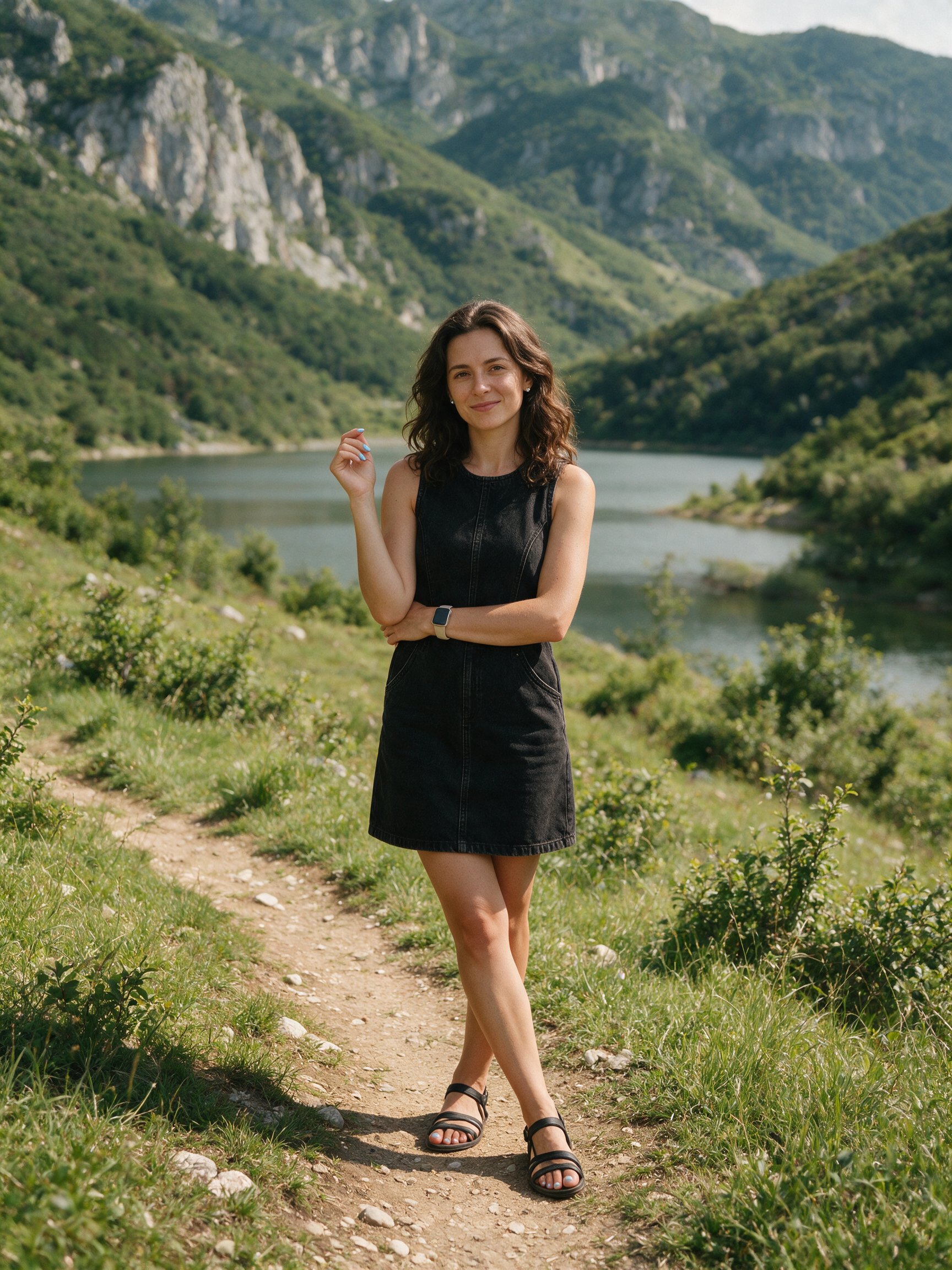
Use a clear image with the body and clothing visible enough for the intended movement.
 Papiboom Studio
WORKFLOW / MOTION TRANSFER
Connect one character image and one motion source to Kling 3.0 Motion Control, then branch, compare, and reuse the result on the same canvas.
No subscription required / Pay-as-you-go credits
The workflow keeps the motion source and character reference as separate media nodes. They can be replaced independently without hiding which asset drove the result.
The duration control is derived from the reference video. This keeps the displayed credit estimate aligned with the clip that will actually be processed.
Use a clear image with the body and clothing visible enough for the intended movement.
Upload or trim a video that contains the movement you want to transfer.
Choose 720p or 1080p. The source clip determines the effective duration.
Keep alternate outputs on the node and route the selected one into the next step.
The quick workflow is visible from a blank canvas and includes public sample media, so its connections can be inspected before sources are replaced.
No. The motion source itself is a video. The character reference is the image input.
No. Papiboom reads the usable source-video duration and uses it for validation and the credit quote.
Yes. The image and motion clip are separate connected media nodes, so either source can be replaced.
Results remain in the generation node history. The selected result is the one used by a connected downstream node.
Open Papiboom Studio, connect your references, and keep every iteration in context.